
It's wise to be prepared for accidents like power outages or computer component failure. That's why backup applications exist ; these are software programs designed to back up your files and documents. This post offers a summary of how to back up apps on Windows and Android operating systems.

Backup Applications
Backup is an Anglo-Saxon term that means reinforcement or support. In the computer environment, it refers to a backup of the files that are stored on a PC, these have as their main objective to protect the information and avoid losing it in the event of any mishap (virus, electrical failure, hardware error, etc.). forced formatting, etc.).
Backup applications can be from Windows, and refer to a complete copy of the operating system, programs and files. Generating thus the protection of the data and conserving the personal configuration of the computer. This application is also available for Android devices.
The aspect that most characterizes Backup applications is that, thanks to these backup copies, the user can have an action plan in the event of any difficulty, quickly recovering the system information. In addition, reducing the response time to the problem.
So Backups offer peace of mind. These can be created automatically from time to time, or through a manual procedure. In any case, their objective is the same: to optimize information security and minimize reaction time in the event of a problem.
Features
There are many backup applications available , although they all share similar features. When it comes to Windows, there are some aspects to consider, so it's worth knowing what you need and what you're looking for in order to get the most out of the application. These are:
- File Copies.
- Image copy.
- Restoration device.
- Scheduled, continuous and real-time backup.
- Saved from previous versions.
- Support for saving in optical storage.
- And copy remotely.

File copy
If the only thing you require is a copy of the files, then you can look for specific software for this option. You can use the Windows library for this. This task is a great time saver, although both the OS and the programs in use will have to be installed again in case of formatting the computer.
image copy
Also known as image Backup, it is an option for copying files. It consists of saving a previous version of the system keeping the programs and personal information. This alternative is convenient when carrying out rapid recoveries. However, everything will depend on the configuration, since it is possible that the files created after the restoration are deleted.
Restoration Device
In case the operating system of the computer fails, a boot media would be the best option to restart it and perform the restoration. It should be noted that some Backup programs allow you to create a disk from the start of the repair procedure, while another starts the process from a partition that is present on it.
Scheduled Backup
Some Backup programs for files and documents have an option to perform backups periodically, which can be scheduled on specific days or times according to the individual's needs. The Backup can be scheduled daily, weekly or monthly.
Continuous Backup
It is a version that derives from the previous Backup, with tighter updates that allow configurations to be made every 5 or 15 minutes. However, it is necessary to take into consideration that this system consumes more resources, since it is active at all times.

real-time backup
This implies updating the file as a backup, as long as it is saved. It is useful if the content of the files is constantly changing. If this is not the case, it is recommended to use a continuous or scheduled Backup.
Saving from Previous Versions
This characteristic refers to the copies that are made and then modified. Well, some software allows you to protect both the old version and the new version, both independently, without overwriting.
Support for Save to Optical Storage
This backup feature is dedicated to individuals who store a lot of content and don't want to sacrifice space on external hard drives. For them there are many Backup programs, which support writing to DVD and Blue-Ray, as an alternative method.
Remote Copy
It is an alternative saving procedure, which consists of exporting the backup to another computer, which is connected to the user's own network, either on a NAS or remotely. For this, the individual can opt for an FTP (remote PC), SMB (for Windows) or AFP (Apple, local PC or NAS) system.
Backup Applications: Recommended
In the case of Windows, you can use free or paid software to prepare Backup. Likewise, the user has online backup copies as a third alternative, these favor desktop programs. Then we will introduce you to various paid and free Backup applications, so that you can choose one according to your needs.

Acronis True Image 2020
Acronis is a paid application, which offers a first trial period of 30 days. With it you can create duplicate images of the system, since it is a very versatile program. It also allows the creation of backup copies of local or cloud files, in addition to creating bootable media, among other options.
EaseUS ToDo Backup Home 10.5
It is a paid application that provides backup solutions and also data restoration, among other functions. This service is available for both Windows and Mac. It should be noted that some of its options are free, or have free trial periods, such as partitions, transfers or data cloning.
Iperius Backup
This application creates a disk image, as well as copies to NAS, Cloud, FTP, Dropbox, OneDrive, Google Drive and many more places. Iperius Backup's interface is less attractive than that of EaseUS ToDo Backup Home 10.5 and Acronis True Image 2020. However, it also has a free alternative apart from the paid ones.
MiniTool ShadowMaker Pro
MiniTool ShadowMaker provides the user with a free and a paid alternative for the purpose of recovering or performing system requests. It should be noted that the paid version of the application has many more functions than the free one, although the latter is sufficient for individuals who use their computer systems little.
For these last users, the free version guarantees a copy and restoration of their files, disk and system. As well as basic cloning.
CloudBerry Backup Desktop
It is an application designed to safeguard all data in a cloud. It has a copy of images, documents, as well as support for Microsoft SQL and Exchange servers. The latter is among the aspects that most characterize the program.
windows-backup
It is a classic free app. It is included among the default Windows options. It is the most basic option, which is used in those cases in which stability problems or viruses arise after recent activities on the computer.

Windows Backup allows the operating system to return to the previous state, deleting installed programs and files downloaded later. It is worth mentioning that at this point of return, the adjustment can be executed manually, creating a new version one or two weeks back in time.
Aomei Backupper Standard 4
It is a backup application designed for Windows operating system users and servers who backup and restore systems and files. It has a simple and fast interface to use.
It makes it easy to backup both files and system, as well as partition and disk backup. The moment the system fails or data is lost, the user can quickly and easily restore it by imaging it, even from a different computer.
The file synchronization in Aomei Backupper is quite useful when you need to keep files in different locations in sync. This application has System Clone, Disk Clone and Partition Clone, which makes OS migration and data transfer easy and simple.
Paragon Backup & Recovery 16 Edition
It is an application that allows the user to choose a version for domestic use, free of charge, and another commercial version, which is paid. The basic mode of Paragon Backup & Recovery 16 includes backup of documents, folders, operating systems, as well as disks. Similarly, it allows the individual to program a copy in WinPE.
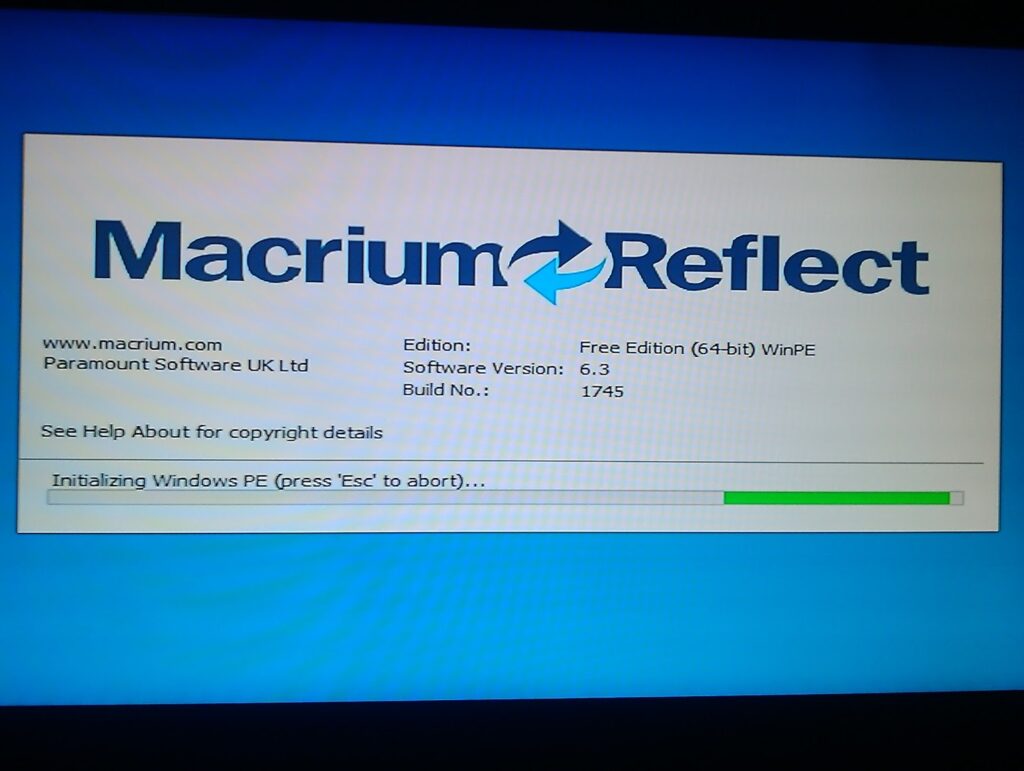
Macrium Reflect Free 6
Macrium Reflect is a Backup application that provides complete recovery solutions for any problem in the operating system, in order to protect data, documents and the OS itself. It features advanced disk imaging technology, in which all content is safely stored in a recoverable backup file.
How to Backup Android Applications?
If you want to reset your phone due to a performance problem, or you are going to change equipment and you don't want to lose your files, we advise you to make a complete backup of your Android device. For this there are several methods, these depend on whether you are a root user or not.
The first one is quite fast, but it involves some risks. Now the second one is slower but sure. He then knows both, in order to choose the one that best suits his needs.
Android Backup
The first method to explain will be the most normal and simple, which almost any individual can perform. This allows you to make a backup of photos and videos, documents and files, WhatsApp chat, contacts and also apps. All this can be protected through completely free applications and offline systems.
Google Drive
Backup using Google Drive is the fastest process to perform. This allows you to store application data in the cloud, as well as call history, contacts, equipment settings, photos and videos, and text messages. To do this you must:
- Locate the following options “Settings”, “Google”, “Backup”.
- Click on the “Create a backup now” option.
- At the end all the data will be in Google Drive.
- Now, on the new phone or reset device, enter the Google account in the initial setup process.
- There you can view a backup, it is the one you previously made.
- Now, restore it and voila. Everything will be back in its place.
Photos and videos
Google Photos is a cloud storage service that has no limits, and is also completely free. It is developed by the great G and its application is generally pre-installed on all Smartphone devices. The indications for the safeguard are:
- Install Google Photos, if you already have it installed then open it.
- Sign in with your Google account, that is, with your Gmail email address.
- If you have never used this service, then you will need to choose one of the following options. The first is original size storage using Google Drive space. The second is unlimited storage through Google Photos (this slightly compresses images and videos).
- By choosing one of the above options, expect the app to detect all the files and upload them to the cloud. This process usually takes a few minutes, depending on how many photos and videos you have stored.

Additional Information
The Google Photos settings are meant to save the images and videos from the camera. Now if you want it to store WhatsApp files then you will need to:
- Open Google Photos.
- Display the side menu.
- Select the “Device Folders” option.
- Mark the WhatsApp app folders you want to keep.
If you do not want to use Google Photos, but another service, then Dropbox, OneDrive, MEGA or Box are at your disposal. All of these work the same and have the option of automatic upload. It should be noted that MEGA is the one that offers the most storage (50 GB), but you can use the one of your choice.
Physical copy
If you don't want to copy to the cloud, then you can backup your margins and videos on your computer. To do this, connect the mobile to the PC using a USB cable. Then on the phone, pull down the notification bar and tap the “USB charging this device” notification.
To continue, select “Transfer Files”. Now, from the pc access the mobile memory and follow the following routes:
- Shared internal storage, DCIM, Camera for photos and videos made by the camera.
- Shared internal storage, Pictures, Screenshot for screenshots.
- And shared internal storage again, WhatsApp, Images, Video for the files received and sent by this app.
Then copy and paste the files you want to store into a folder on your hard drive and wait for the procedure to complete. For the restoration of your images and videos, simply connect the phone to the PC again and move all the data to the source folders. All data can be viewed again on the computer.
Documents and Files
In this case we will take into account the PDFs, .docx, APKs, that are downloaded to the device. As with photos, the user has two options. The first is online, while the second is offline. It is necessary to mention that Google Drive can be used, since this cloud comes pre-installed and offers 15 GB of free storage.

The first step is to open Google Drive, if you have not done it before, you must sign in with your Google account. Then create one or more folders to easily access the content, this action is optional. Press the “+” button located at the bottom right and then “Upload”. Now, select the three dots on the top right and choose the option “Show internal storage”.
Pull down the alter menu and select the internal storage, it is located under the "Downloads" option. Locate the files in the folders you have previously saved and then upload them. If you have any WhatsApp documents, go to WhatsApp Document and upload them too.
More
The second alternative in offline, the procedure to perform Backup is as follows, the first step is to connect the device to the PC, using a USB cable. Then on your computer, pull down the notification bar and tap the “Charging this device via USB” notification.
To continue, select “Transfer Files”. Now, from the pc access the mobile memory. Look in this for the folders in which the files are saved and copy and paste them to the computer's hard drive.
For the restoration of your files and documents, simply connect the phone to the PC again and move all the information to the source folders. All data can be viewed again on the computer, as if nothing had happened. In case of doubts and concerns, we suggest you watch the following video:
Backup Applications: Root Users
If you have an Android device with root access, the backup process is much easier and faster. Through this type of user you can Backup photos, videos and files, applications and their data.
It should be noted that obtaining superuser permissions leads to certain security problems, which in inexperienced hands could be fatal. Therefore, if you don't know the root world, then proceed carefully and at your own risk.
The most common Backup applications on Android with root users are Titanium and Migrate, learn about them below.
Titanium Backup
It has a paid and free version. Demonstrating certain differences between the two. It saves apps and data, and reinstalls them again. For this it is necessary:
- Grant superuser permission.
- Select the applications you want to save.
- Start the process.
At the end of the process, you should move the file generated in TitaniumBackup shared internal storage path to SD card or PC. To install the new ROM, reinstall Titanium Backup and reverse the procedure.
- Select "Restore."
- Locate the backup you made previously.
- Select the backup and let the app work.
- At the end of the process, delete the backup.
Migrate
It is a much simpler Backup application than the previous one, it allows you to make backup copies of SMS, the list of calls and contacts. It should be noted that it is still under development and is sometimes unstable. Carefully follow the instructions below:

- select “Backup”.
- Choose the apps to store and check all the boxes, in order to save the apps, data and permission settings.
- Then select whether you want to save your text messages, calls, and contacts.
- Complete the copy and move the .zip file to the microSD card.
- Install the new ROM, flash the firmware, Google apps and the .zip file.
- When the process is complete, Migrate will open automatically.
- Grant the superuser permission and wait for the app to do its thing.
If you liked the article related to Backup applications, we invite you to view the following posts, which are related to the topic:
External hard drive backup software
Best program to recover deleted files
Table of Contents